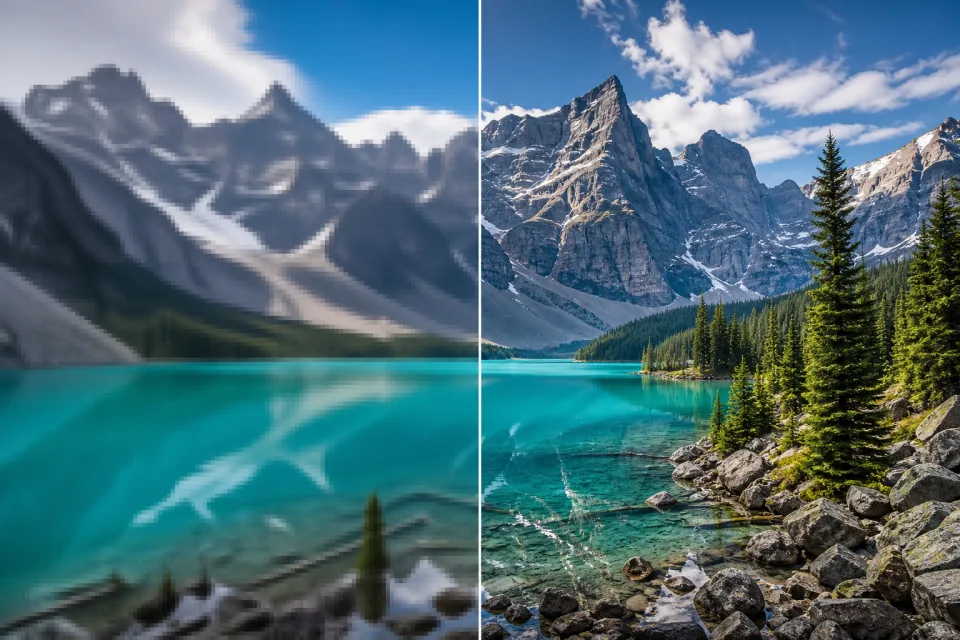
BeforeAfter
Landscape detail
Recover mountain edges, tree texture, and water detail from a soft landscape photo.
“Upscale 2× and restore crisp mountain texture while keeping the natural lake colors.”
Try This Edit NEON Dance
Upscale a low-resolution photo online with AI. Improve clarity and natural detail while preserving the original framing with NEON Dance.
Upload a low-resolution image, choose a scale, and get a sharper version with the original composition intact.
Use a focused upscale when a photo needs to be clearer, larger, or ready for a new placement.
Recover mountain edges, tree texture, and water detail from a soft landscape photo.
“Upscale 2× and restore crisp mountain texture while keeping the natural lake colors.”
Try This Edit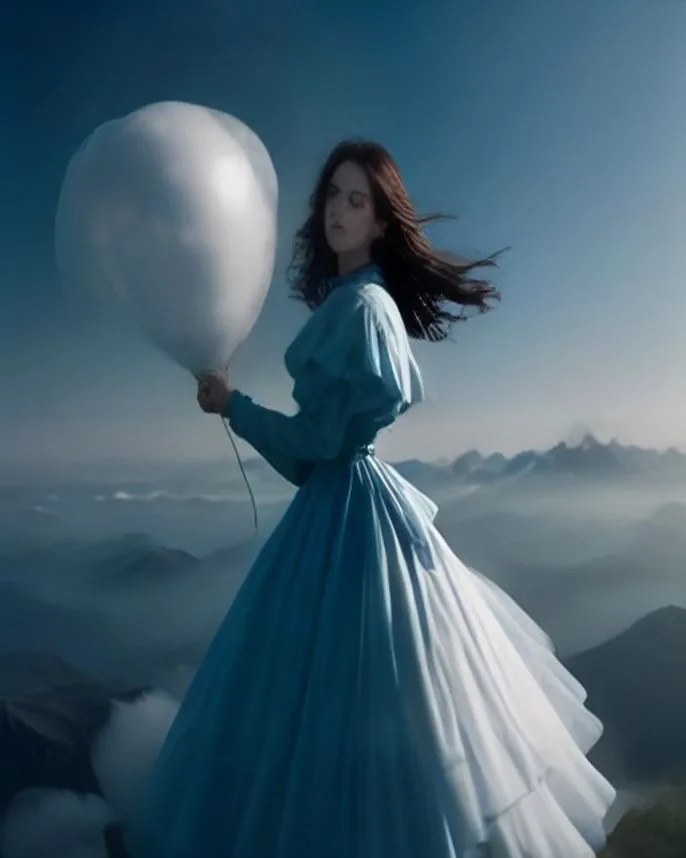 Reference
Bring out hair, fabric, and edge detail in a soft portrait while keeping its expression and framing.
“Upscale 2×, restore natural hair and fabric detail, and keep the portrait's expression and framing.”
Try This Edit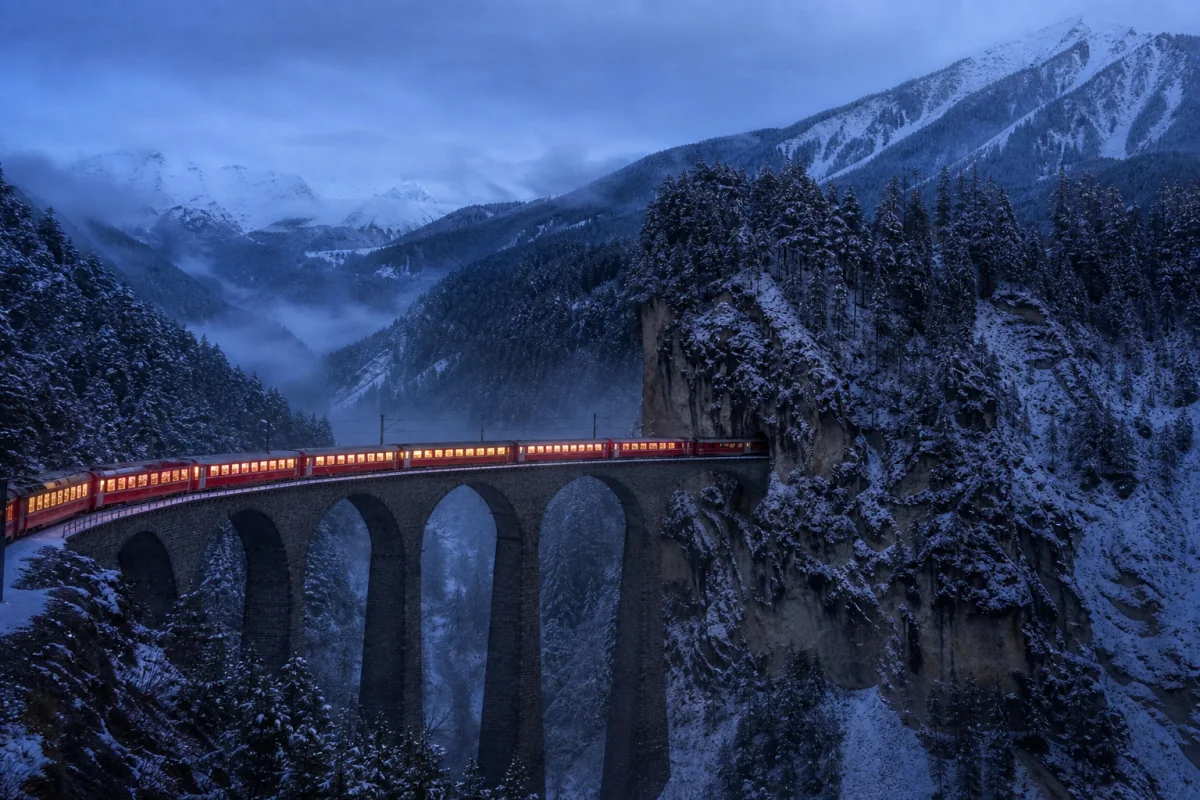 Reference
Give a soft mountain-and-railway scene more room for the train, bridge, and snowy ridge detail.
“Upscale 4× with gentle detail recovery; preserve the cool night colors and original framing.”
Try This Edit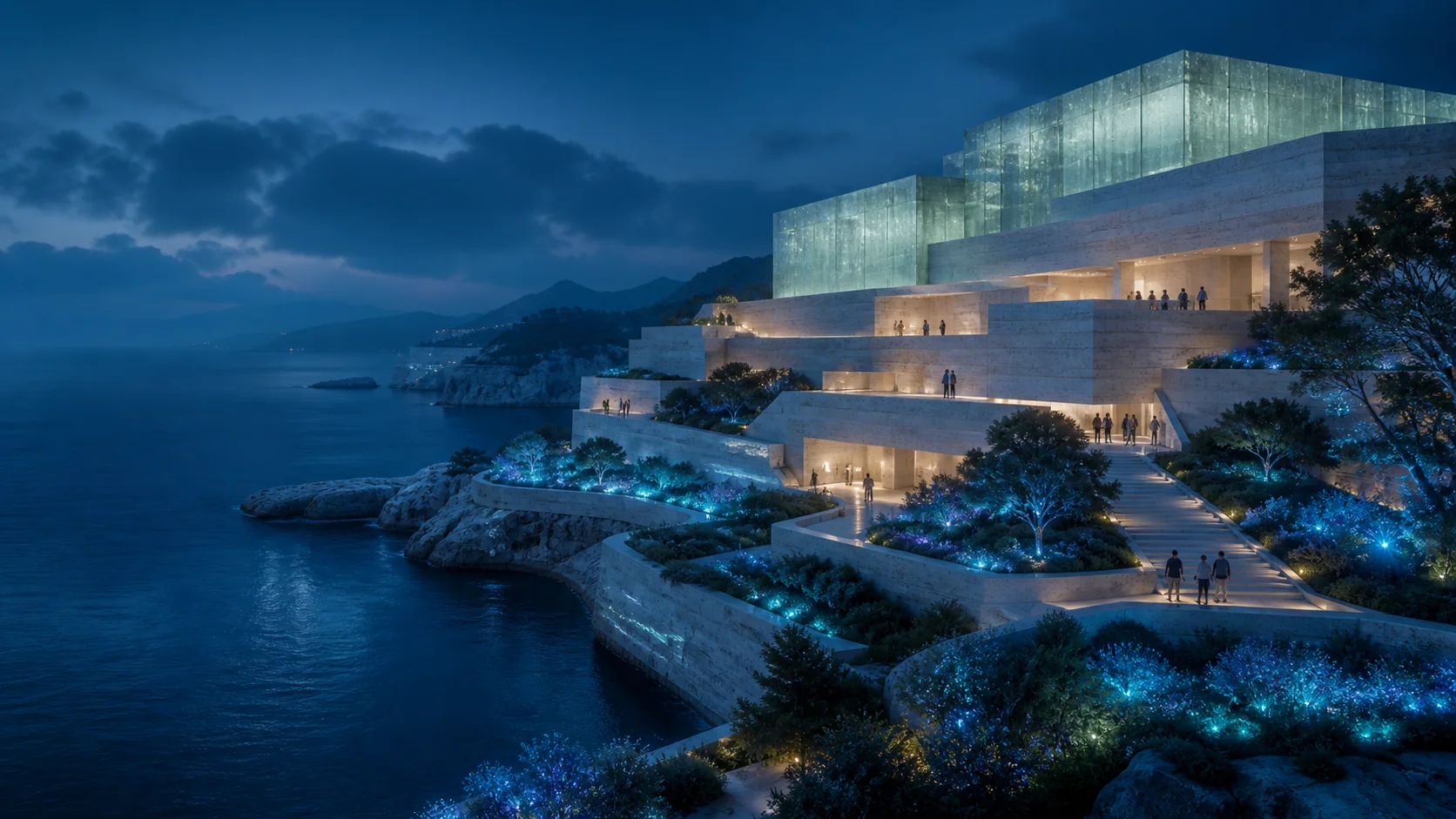 Reference
Give a wide architectural scene more room for fine facade, path, and landscape detail.
“Upscale 2×; recover fine facade and landscape detail while preserving the wide composition and cool evening light.”
Try This Edit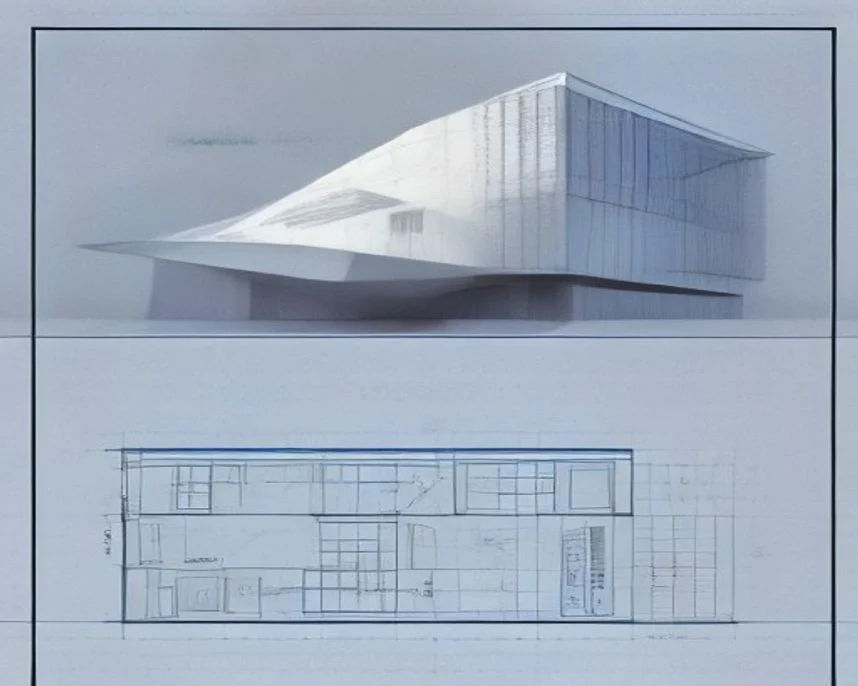 Reference
Improve the legibility of a soft architectural reference without changing its layout.
“Upscale 2×; clarify the architectural lines and drawing details without changing the original layout.”
Try This EditStart with the clearest original file you have so the model has useful detail to recover.
Use 2× for a balanced improvement or 4× when you need a larger output.
Compare the source and result, download the sharpened image, or upscale again.
No. This supporting image tool maps the uploaded dimensions to the closest supported ratio so the original framing is respected.
Choose 2× for a natural everyday enhancement and 4× when the final placement needs substantially more size.
Yes. Add a short instruction such as keep film grain natural or preserve the paper texture.