BeforeAfter
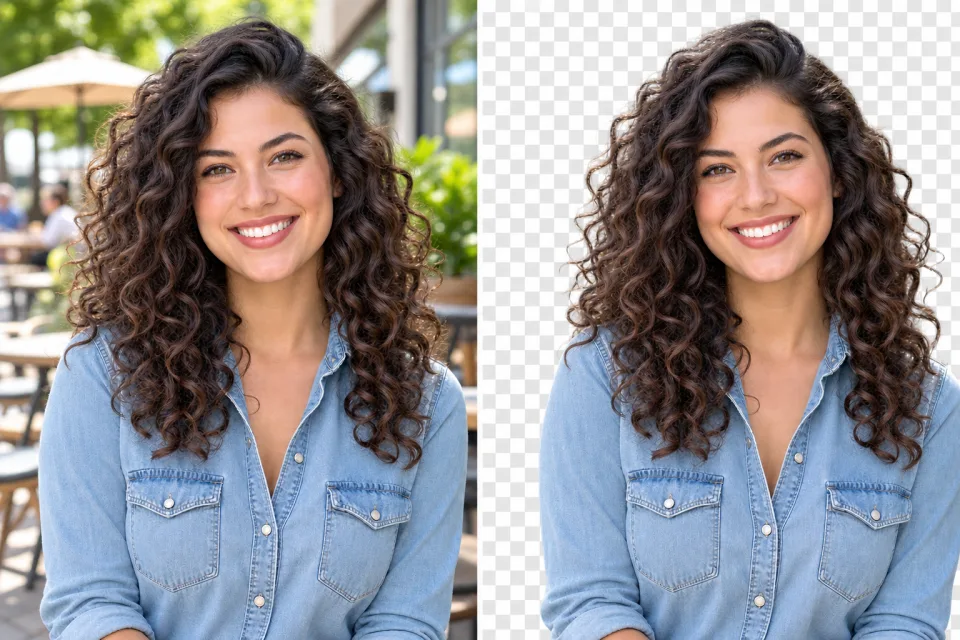
Portrait cutout
Keep hair, clothing, and small edges natural while removing a busy café scene.
“Remove the café background and preserve the subject's curls and shoulders.”
Try This Edit NEON Dance
Remove an image background online with AI. Upload a portrait or product photo and request a clean transparent PNG cutout with NEON Dance.
This supporting image tool isolates a subject in an uploaded portrait or product photo and requests a transparent PNG cutout.
See how a single upload becomes a clean, ready-to-use cutout for shops, profiles, and creative layouts.
Keep hair, clothing, and small edges natural while removing a busy café scene.
“Remove the café background and preserve the subject's curls and shoulders.”
Try This Edit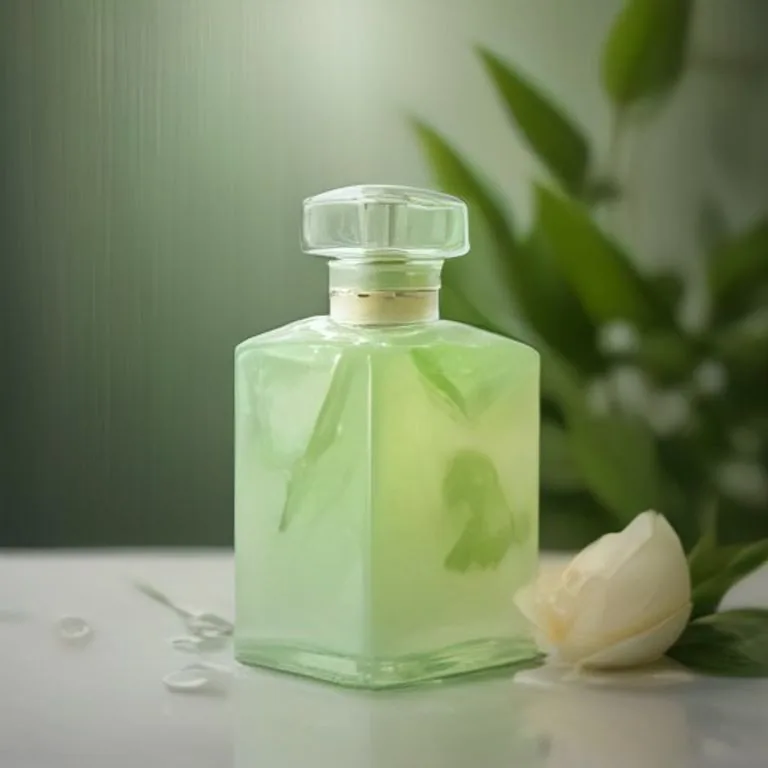 Reference
Create a transparent product asset that can move into a catalog or ad layout.
“Remove everything around the bottle and keep the glass edges and highlights.”
Try This Edit Reference
Separate a pet from its surroundings for a sticker, avatar, or social post.
“Cut out the cat, including the fur outline and whiskers, on a transparent background.”
Try This Edit Reference
Use a high-contrast bottle scene as a reference for isolating reflective glass and its silhouette.
“Remove the dark studio background and keep the bottle, glass edges, and gold reflection clean.”
Try This Edit Reference
Explore a detailed vase and flower cutout while keeping the stems and delicate leaves intact.
“Remove the wall and pedestal behind the vase; preserve the flower, stems, leaves, and glass rim.”
Try This EditChoose a JPG, PNG, or WebP image with one clear subject.
Optional instructions can call out fine edges or details you want preserved.
Compare the original and result side by side, then download the PNG if it meets your needs or edit again.
The workflow requests a transparent PNG and uses a checkerboard preview when the returned file is PNG. Transparency still depends on the provider result, so review the cutout before downloading.
Clear photos with a visible subject and reasonable contrast usually produce the cleanest edges.
Yes. Choose Edit Again to use the result as the next input and add a more specific instruction.